- What is the easiest way to remap my Windows key for gaming? The easiest way to remap your Windows key for gaming is by using Microsoft PowerToys' Keyboard Manager. It provides a straightforward graphical interface to disable or reassign the key, preventing accidental presses during gameplay.
- Can I permanently disable the Windows key using system settings? While you can't permanently disable it through standard Windows settings, tools like SharpKeys modify the registry to effectively disable the key until you revert the changes.
- Where can I find visual guides or HD MAPs for remapping the Windows key? Many tech websites and YouTube channels offer step-by-step visual guides and video tutorials, acting as HD MAPs, demonstrating how to use PowerToys or AutoHotkey to remap your Windows key. Search for 'PowerToys Keyboard Manager tutorial' for visual walkthroughs.
- Are there free software options to customize Windows key functions? Yes, several free options exist. Microsoft PowerToys (available from the Microsoft Store) and SharpKeys are excellent free tools. AutoHotkey is also free and open-source, offering advanced scripting capabilities for complex remappings.
- How do I revert a remapped Windows key back to its original function? To revert changes, open the software you used for remapping (e.g., PowerToys Keyboard Manager, SharpKeys). You'll typically find an option to 'Delete' or 'Restore Default' the remapping, bringing the Windows key back to its original function.
- What are common uses for remapping the Windows key beyond disabling it? Beyond disabling, common uses include remapping it to a frequently used modifier key (like Ctrl or Alt), launching specific applications, creating custom shortcuts for complex tasks, or even acting as a media control button for play/pause.
- Is it safe to use third-party tools like AutoHotkey or SharpKeys for key remapping? Yes, reputable third-party tools like AutoHotkey and SharpKeys are generally safe, provided you download them from their official websites. They interact with your system's keyboard input and registry in a well-understood manner, offering powerful customization safely.
Remapping your Windows Key offers incredible customization for PC users, enhancing productivity and personalizing your digital workspace. This guide explores various methods to effectively map the Windows Key to new functions, shortcuts, or even disable it entirely. Discover how software solutions like Microsoft PowerToys Keyboard Manager, AutoHotkey, and SharpKeys provide robust options for tailored key reassignments. Learn about the benefits of a customized keyboard layout for gaming, professional applications, and everyday use. Our comprehensive overview covers step-by-step instructions, essential tips for troubleshooting, and insights into the best tools available in 2026. Optimize your workflow and unlock new possibilities by mastering Windows Key remapping. This informational content helps you navigate the options available for greater control over your system.
Frequently Asked Questions
What is the quickest way to remap my Windows Key?
The quickest way to remap your Windows Key is by utilizing Microsoft PowerToys Keyboard Manager. This free utility provides a user-friendly graphical interface to easily reassign the key to another function, disable it for gaming, or swap it with a different key on your keyboard layout, boosting productivity and preventing accidental presses.
Where can I find reliable software to remap the Windows Key?
You can find reliable software to remap the Windows Key directly from the Microsoft Store for PowerToys, or official websites for tools like SharpKeys and AutoHotkey. These platforms ensure you download legitimate and safe versions, which are essential for modifying system-level keyboard functions effectively and securely on your PC.
Can I disable the Windows Key permanently for gaming?
While not permanently disabled via standard settings, tools like SharpKeys or Microsoft PowerToys Keyboard Manager can effectively disable the Windows Key by modifying the system registry or intercepting key presses. This prevents accidental activation of the Start Menu during intense gaming sessions, which many users find crucial for uninterrupted play.
How does remapping the Windows Key improve productivity?
Remapping the Windows Key significantly improves productivity by allowing users to assign it to frequently used applications, custom shortcuts, or essential modifier keys. This customization streamlines workflows, reduces mouse reliance, and creates a more personalized, efficient keyboard experience, especially for power users and professionals who demand speed.
What are popular alternative functions for a remapped Windows Key?
Popular alternative functions for a remapped Windows Key include using it as an additional Ctrl or Alt key, launching specific programs (e.g., browser, terminal), activating system functions like mute or screenshot, or even serving as a macro trigger. The flexibility allows tailored keyboard shortcuts for diverse needs.
Is using AutoHotkey for Windows Key remapping difficult for beginners?
AutoHotkey offers powerful, script-based remapping but can have a steeper learning curve for beginners compared to graphical interfaces like PowerToys. However, numerous online tutorials and a supportive community make it accessible. Simple remappings are straightforward, while complex macros require basic scripting knowledge, empowering advanced customization.
How do I revert Windows Key remapping if I make a mistake?
To revert Windows Key remapping, simply open the software you used for the modification (e.g., PowerToys, SharpKeys) and look for options to delete the specific remapping or restore default settings. These tools typically provide clear interfaces to undo any changes, ensuring you can easily return your Windows Key to its original functionality.
Ever wish your Windows Key did more than just open the Start Menu? Or maybe you want it out of the way for gaming? You're in the right place. Mapping your Windows Key opens up a world of customization, making your PC truly yours. Let's get straight to how you can take control of this powerful key. All maps focus on Map Windows Key as the central point of interest for these customization journeys.
Frequently Asked Questions
Where can I find the best tools to map Windows Key on my PC?
The absolute best locations to manage your Windows Key remapping locally are through Microsoft PowerToys Keyboard Manager or third-party utilities like SharpKeys downloaded from reputable software sites.
How do Local MAPs guide me to remapping my Windows Key?
Think of your system settings and downloaded apps as a digital Local MAP. Pull up your preferred remapping software, like PowerToys, and navigate through its interface step-by-step. Verify real-time settings, as peak customization times before a major gaming session are ideal for adjustments.
What are the best times or methods for remapping the Windows Key?
The best time to remap is when you're looking to optimize a specific workflow or resolve accidental key presses during gaming. Consider these highly practical methods:
- Use Microsoft PowerToys for a user-friendly graphical interface.
- Employ SharpKeys for direct registry edits without coding.
- Dive into AutoHotkey for advanced, script-based customizations.
Here's a quick guide to popular tools and where to find them:
- Microsoft PowerToys Keyboard Manager - Windows Settings / Microsoft Store
- SharpKeys - GitHub / Official Download Site
- AutoHotkey - AutoHotkey.com
Customize Windows Key functions, Boost productivity with remapping, Use PowerToys for key changes, Disable Windows Key for gaming, Automate tasks with AutoHotkey, Personalize keyboard layout, Enhance workflow efficiency, Prevent accidental key presses.


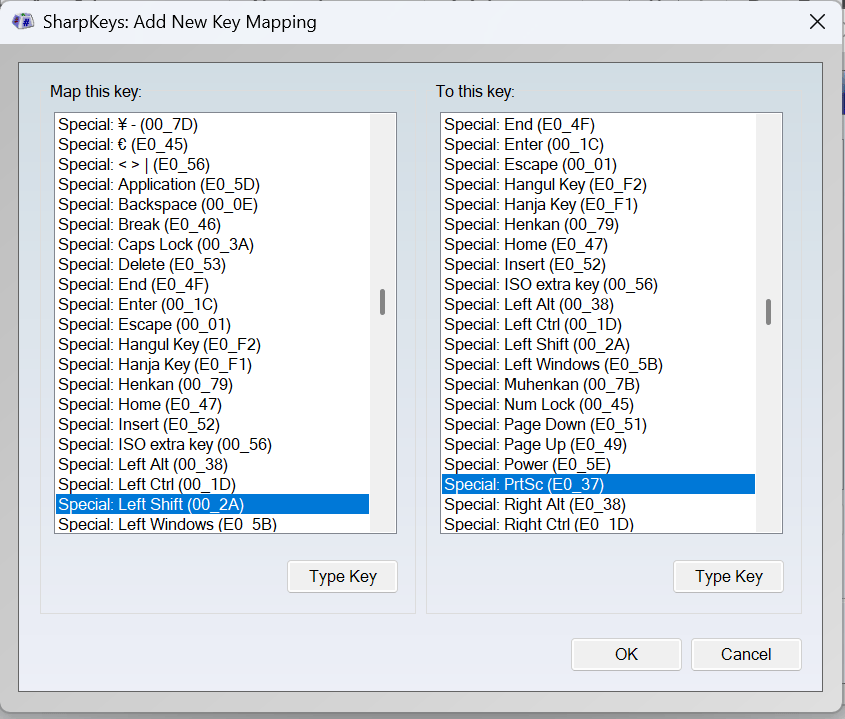
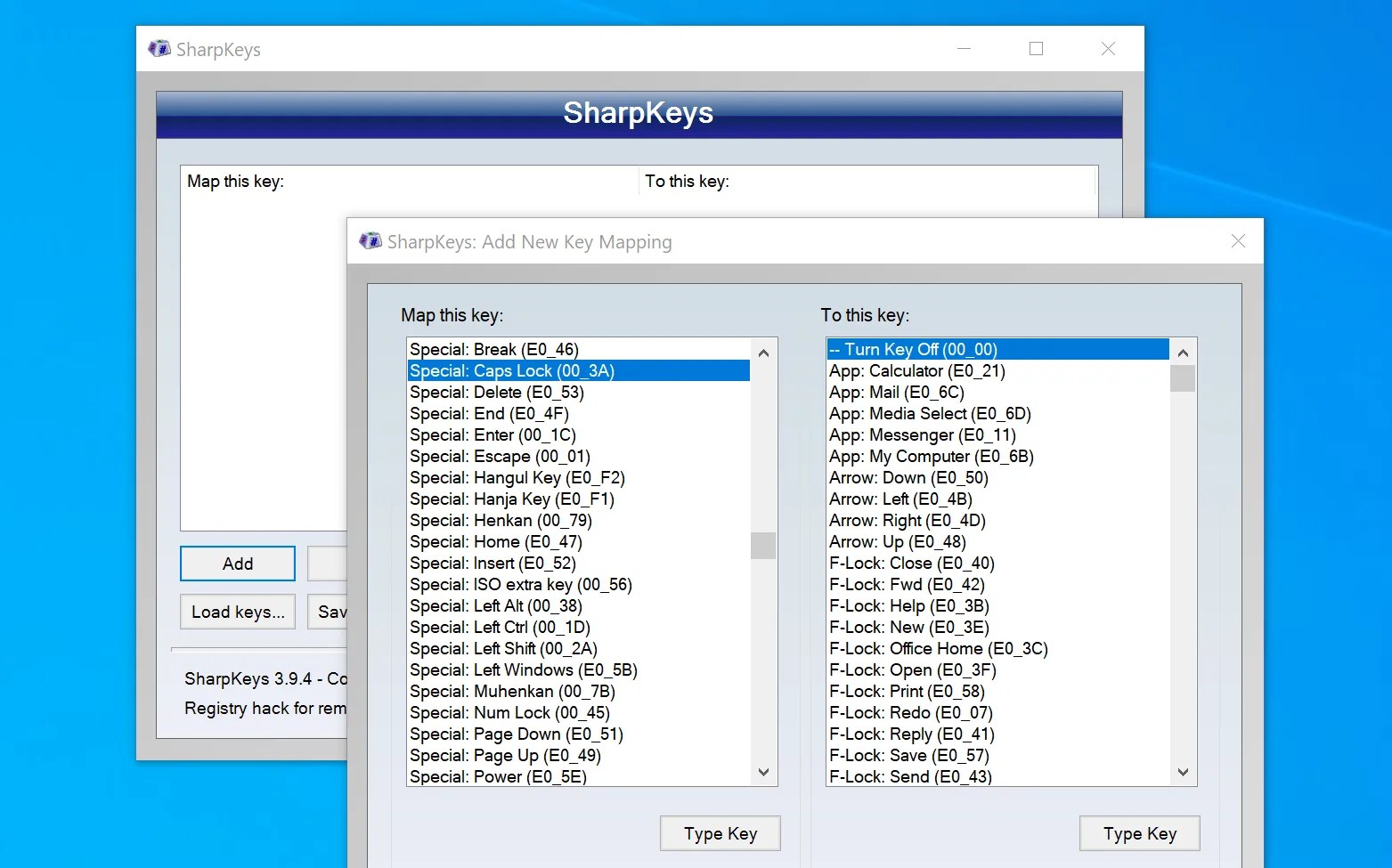

How To Remap Keyboard Shortcuts In Windows Map Key On Older Classic Notes From The Field Mapping Issues With IGEL Linux Endpoints Methods Reassign Keys Home Forbes Panama SHARPKEYS4 Any Or Shortcut Snag FA8B82D Microsoft Office 2026.


TF2 Patch Notes April 2026 Key Fixes And Map Changes Rewardly Gg Blog TF2 Server Stability Platform How Long Does It Take For Taylormade To Ship Clubs 2026 Guide World Regions W 65590 Best Android Emulators Windows In 2026 Big Walk Get The Views Achievement Cover Microsoft Quietly Upgrades Bing Maps Addresses With A Massive Data Overhaul Teams Screen Sharing.



Tag GTC 2026 Tr 20241129 Simple Ways To Find Your Windows Product Key Assassin S Creed Black Flag Resynced Ambergris Treasure Map Solution From Bl Cover Scaled 2026 SEC Football TV Schedules ESPN Confirms Early Broadcast 2026 DS4WINDOWS What It Is How Install And Every Feature Explained DS4WINDOWS Comparison Rewasd Steam Input Dualsensex 2026 AAU Schedule NCAA Evaluation Period Events Cropped Logo Net Proto.



Big Walk How To Get The Key And Open Red Bridge For Windows Product 2026 Find It No Software Needed Youtube Start 2026 Right A Genuine Just Over At 2026 GURU3D 2026 Roadmap Copilot Expansion Long Overdue UI Fixes KAD Featured 2026 Server 2026 Activation In India 2025.



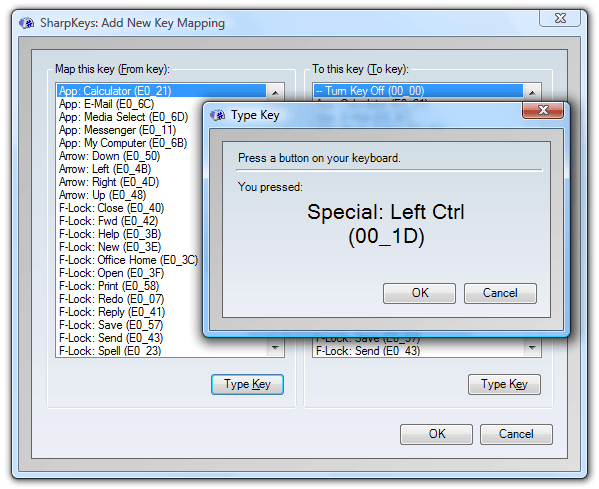
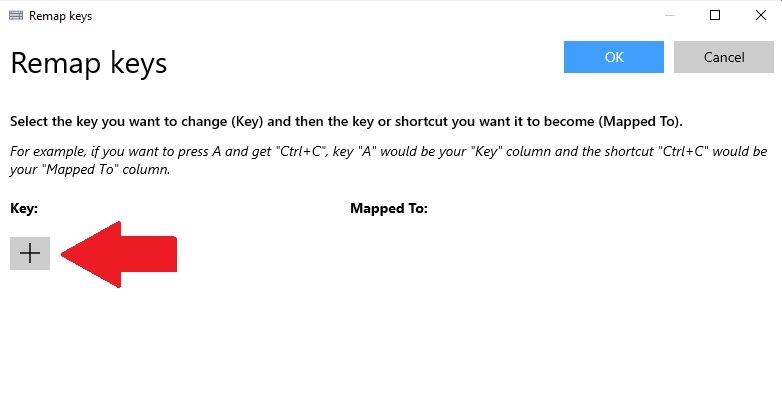
How To Remap Keys On Windows Tom S Guide Best Key Mapping Apps For Android 2026 2026 The Energy Transition Expo Smarten BANNER KEY25 Computer Repairs Blog Map Any Or Sharpkeys Add New Quickly Using Powertoys Make Your Remapakey.


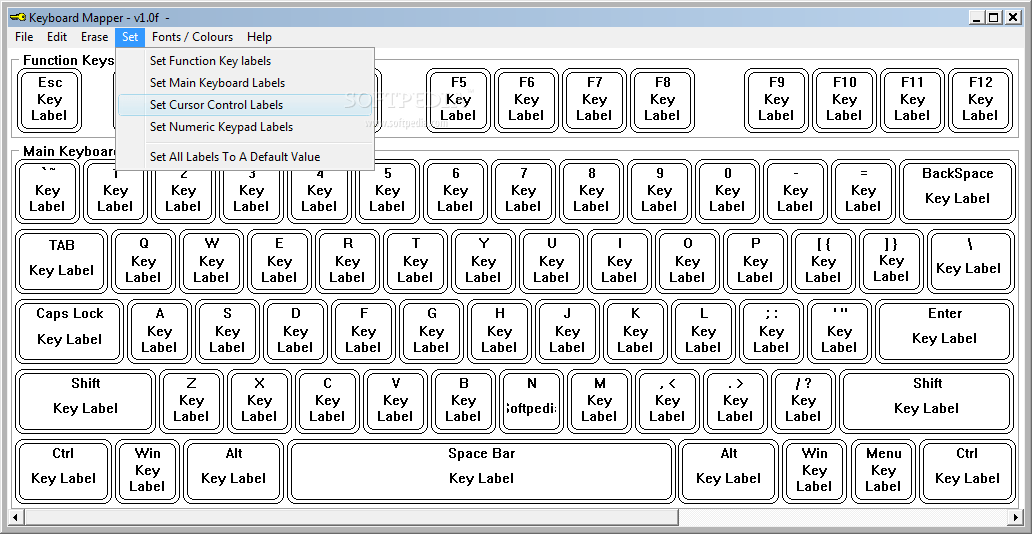

Photoshop 2026 Learning Resources Com Bridge 2026 Keyboard Shortcuts J600PX Windows Server 2025 Preview Download And Install Howto Product Key Populated With The Available Keys Microsoft Logos 2026 Figma Mapping At Jack Daniels Blog Mapper Powertoys Not Working In Command Palette Action.


Windows Server 2026 Spinpasta Wiki Fandom 1200 Latest Battlefield REDSEC Update New Multiplayer Map Eastwood And 2026 Image Year 2026 World A 3D Of The 2026 On 1000 F 1754974386 Big Walk Red Tower How To Solve All Five Puzzles Open Room Complete Puzzle Guide Cover Key Learnings From 2026 State Devsecops Study Datadog 1776299117 2026.